To ensure that your account is associated with your correct school and class section(s), you'll need to make some minor updates to your EdReady Profile. These edits will ensure that your teacher has access to see your progress and that you get credit for working in EdReady.
These steps can be completed at any time, but we recommend that you do this as you begin working in EdReady.
A. Access 'My Profile' Categories
1. Access EdReady by clicking the EdReady CCRG logo from NCEdCloud ( )
)
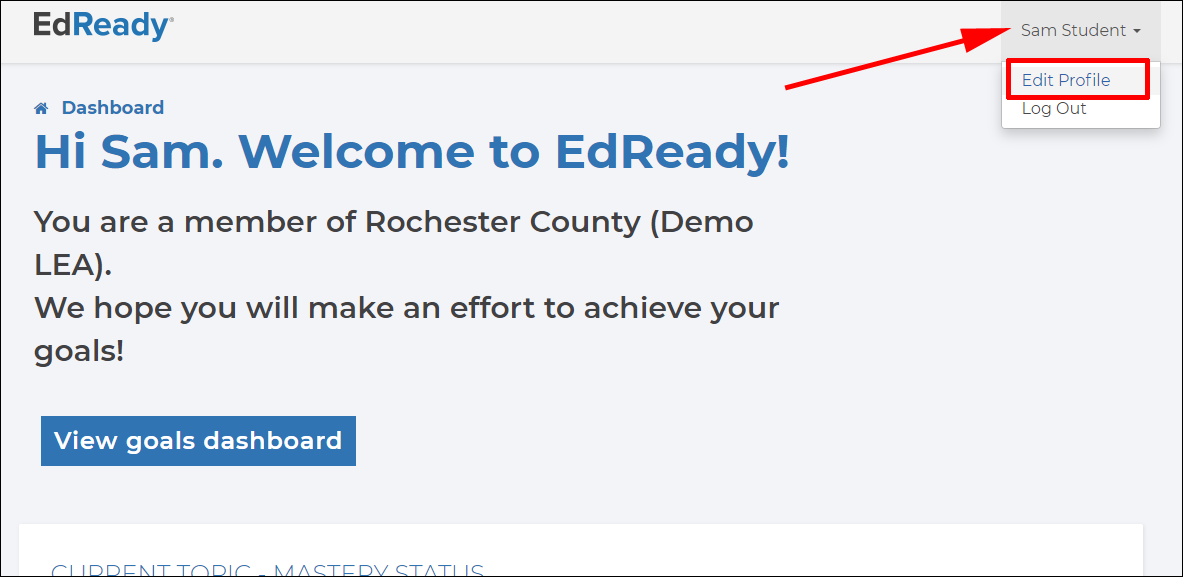
2. Click on your name in the top header and a dropdown menu will appear. Click on Edit Profile.
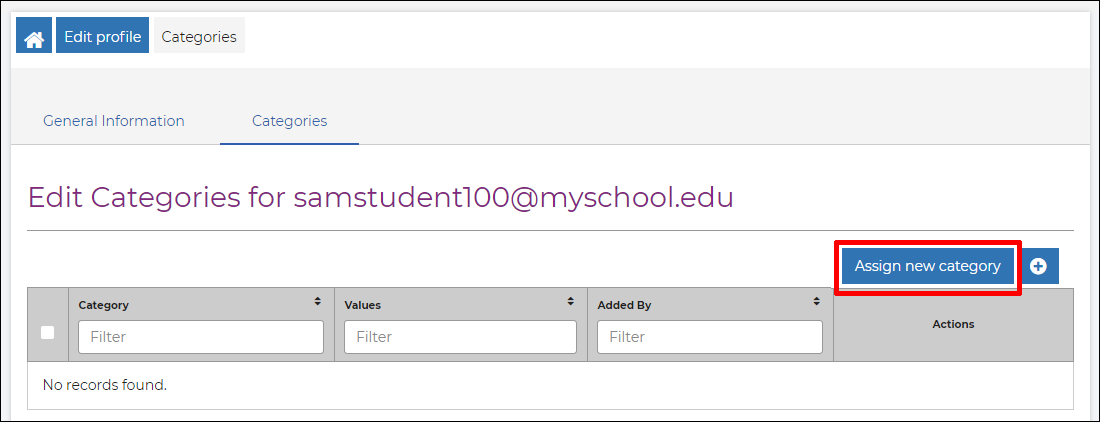
3. Click on the Categories tab
B. Add new Categories
4. Click the Assign new Category button (above the table)
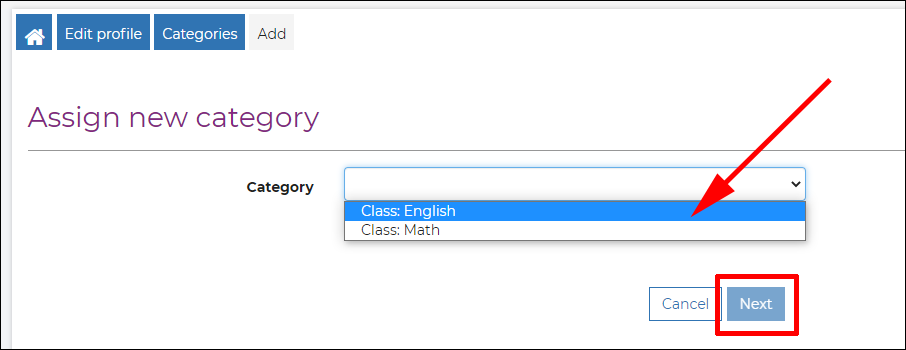
5. Select the value (either 'Class: English' or 'Class: Math') from the dropdown menu and click Next
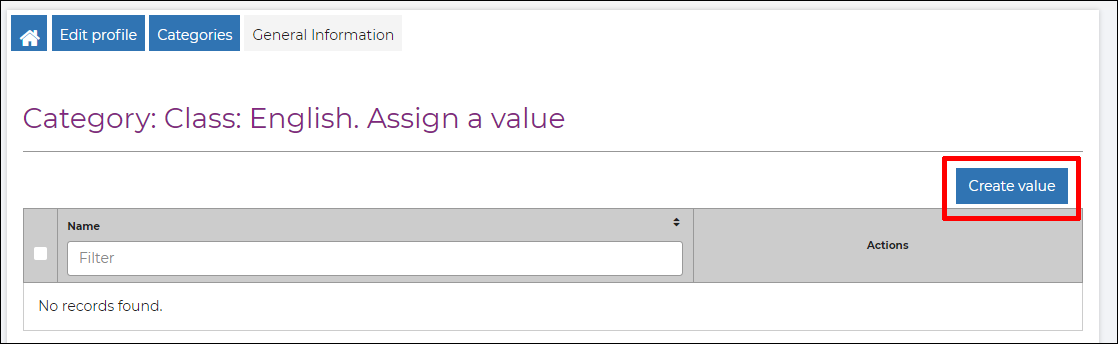
6. Click the Create Value button above the table
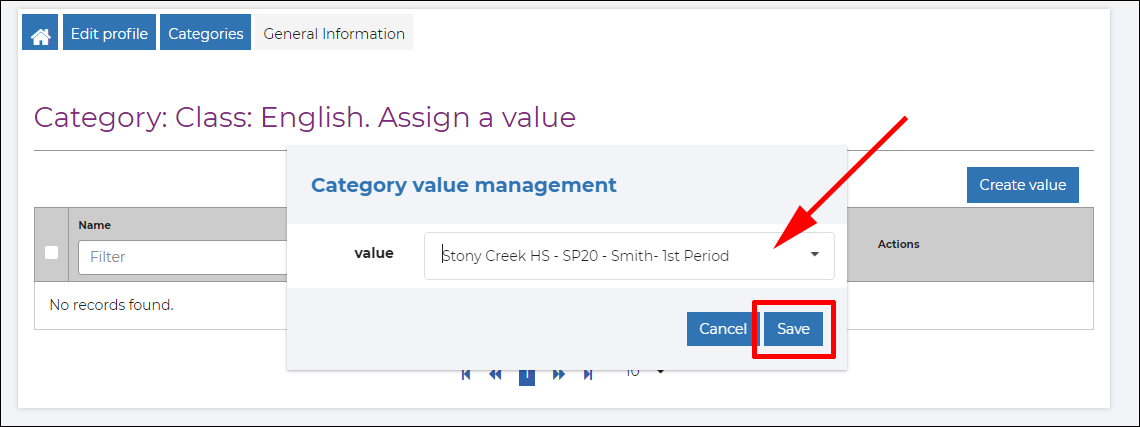
7. A window will open with a pop-up window, listing all available class sections select the correct value for this category. If you don't know what to select, ask your instructor for guidance. Click the Save button.
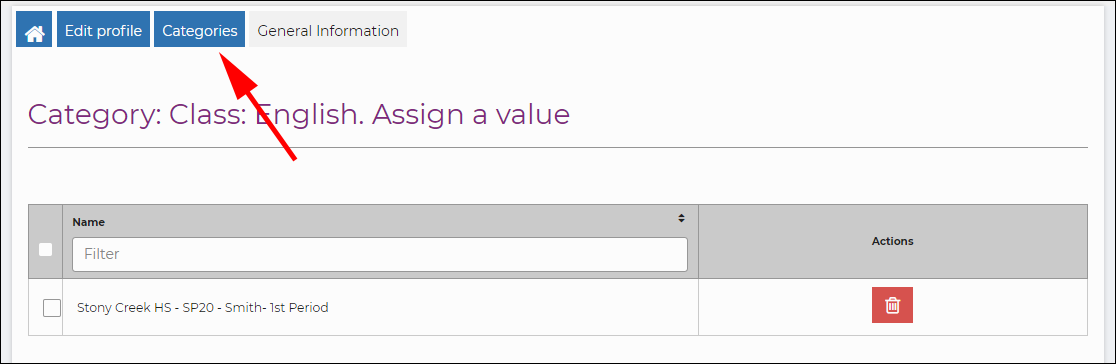
8. You will see your selected class displayed on-screen. To get back to the main Categories table, click Categories in the breadcrumbs.
9. Repeat steps 4-8 for any categories you need to add to your account.
C. Edit existing Categories
You can edit the value associated with any existing categories by accessing your Categories page (steps 1-3 above) and:
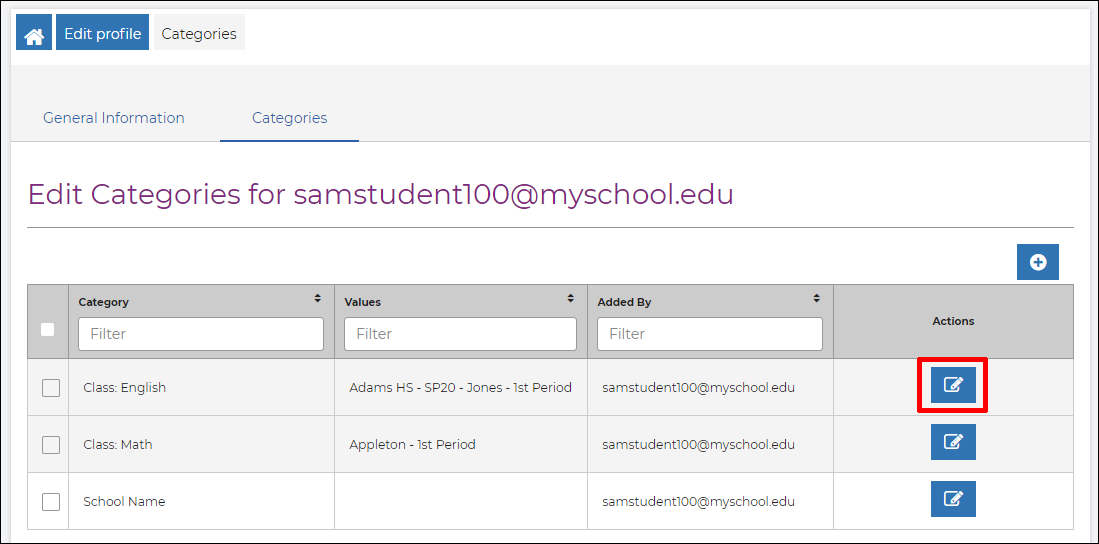
i. Click the Edit button ( ) for the category you wish to update
ii. You will need to first Delete ( ) the existing value, then will be able to Create Value to add the updated selection (step 6 above).
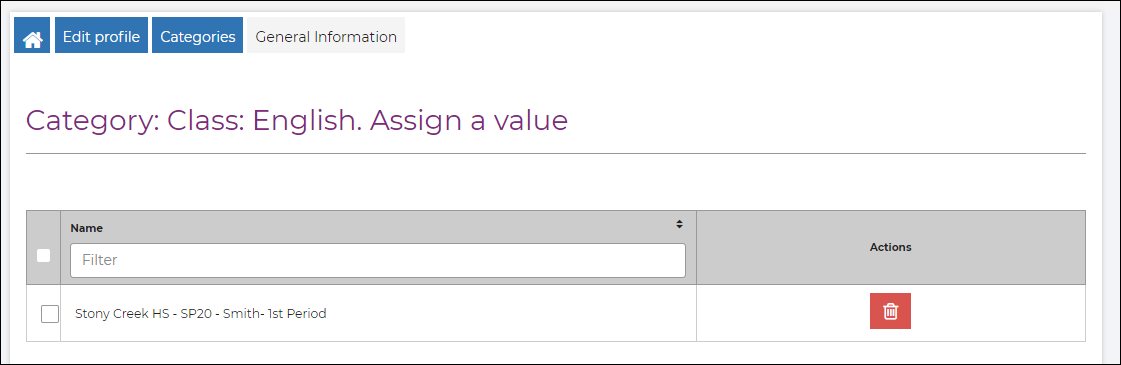
iii. To get back to the main Categories table click Categories in the breadcrumbs